
Disk Internals & Data Recovery (1): Where Does Data Go After You Delete a File?
Disclaimer: Everything in this post is done on an ordinary 100MB file and never touches your computer's real hard drive. Do not change the target of any command here to a physical device like /dev/sda.
This post does four things:
- Use a 100MB file as a fake hard drive, and partition and format it by hand
- Dig a file's contents straight off the disk without going through the filesystem
- Delete the file and see what "delete" actually does
- Recover the file even after both its filename and its inode are gone
Every pitfall I stepped in is flagged as "Beginner pitfall" — those are the real point of this post.
Environment
WSL2, or any Linux. No physical disk required.
sudo apt update && sudo apt install -y sleuthkit xxd
Three safety rules:
- Every command targets only
~/lab/disk.imgor the/dev/loop0attached to it - No
/dev/sd*appears anywhere in this post - Before running any command, take a look at what it's targeting — that habit matters more than any tool
Step 1: Make a fake hard drive
mkdir -p ~/lab && cd ~/lab
dd if=/dev/zero of=disk.img bs=1M count=100
xxd -a -l 512 disk.img
00000000: 0000 0000 0000 0000 0000 0000 0000 0000  ................
*
000001f0: 0000 0000 0000 0000 0000 0000 0000 0000  ................
disk.img is a 100MB file full of zeros. From now on we'll "treat it as" a blank hard drive. It's the same trick WSL pulls with its own .vhdx: to Windows it's a file, to WSL it's an entire disk.
xxd -a collapses the repeated all-zero lines into *.
Beginner pitfall: the 105 MB, 100 MiB that dd prints is the same number. Manufacturers label in decimal (1TB = 10¹²), while the OS displays binary (a 1TB drive shows up as 931 GiB). That's exactly why the 1TB drive you bought seems to be "missing 70GB." Both units will keep coming up when we calculate positions later.
Step 2: A hard drive only knows sectors
A hard drive doesn't know about files, and it doesn't know about folders. All it knows is a row of numbered slots called sectors, each 512 bytes.
This disk has 204800 of them, numbered 0 to 204799.
Key point: everything that follows — the partition table, the filesystem, how to fish out deleted files — is just answering one question: what's in which slot.
Step 3: Partition
printf 'label: dos\n,,L\n' | sfdisk disk.img
The important parts of sfdisk's report:
Disk disk.img: 100 MiB, 104857600 bytes, 204800 sectors
Units: sectors of 1 * 512 = 512 bytes
...
Device     Boot Start    End Sectors Size Id Type
disk.img1        2048 204799  202752  99M 83 Linux
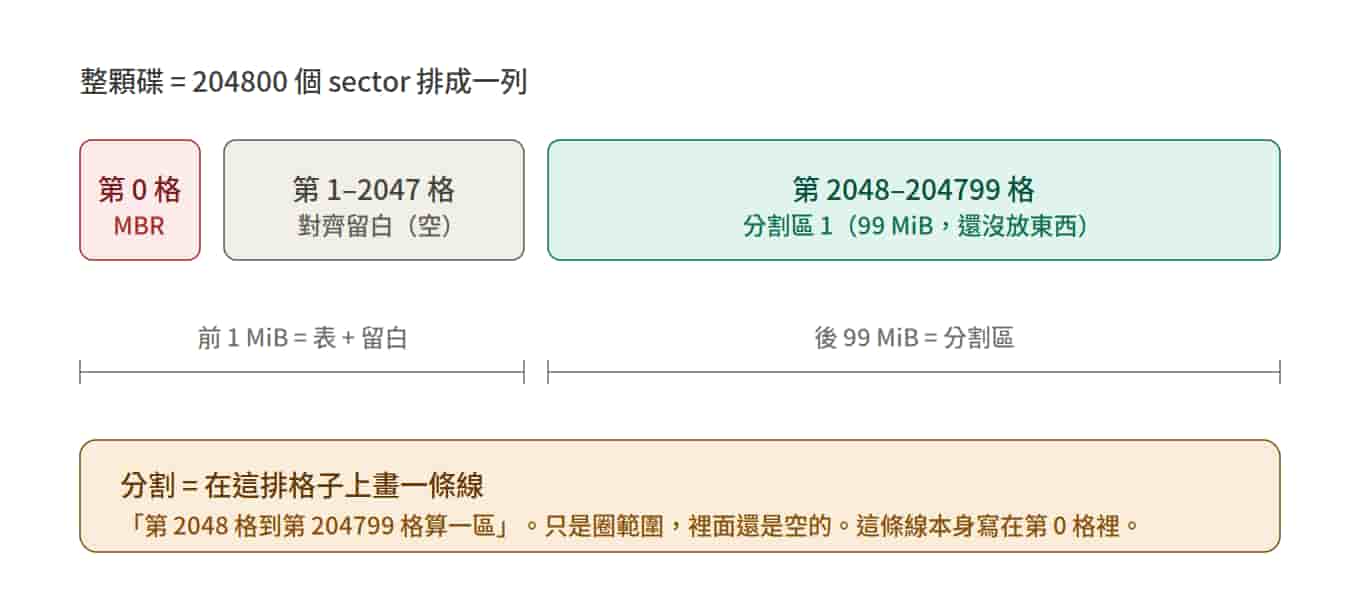
A partition is just a line drawn across that row of slots: "sectors 2048 through 204799 are one region." It only marks off a range; what's inside is still empty.
disk.img1 is the partition's name, following the same convention as /dev/sda → /dev/sda1. The disk.img2: Done. in the report just means sfdisk checked whether to create a second partition, found nothing specified, and wrapped up. There's really only one partition.
The four numbers in the table:
- Start 2048: begins at sector 2048
- End 204799: the last sector, which is also the last sector of the whole disk
- Sectors 202752: 204799 − 2048 + 1
- Size 99M: 202752 × 512 ≈ 99 MiB
Beginner pitfall #1: 2048 has nothing to do with the disk's size; it's fixed. Whether the disk is 100MB or 2TB, modern tools start drawing at sector 2048, and 2048 × 512 = 1 MiB. Hard drives and SSDs read and write internally in units bigger than 512 bytes, so starting a partition on a whole MiB keeps it from straddling those units. This is called alignment. On a 500MB disk, the only things that change are End and Sectors.
Beginner pitfall #2: the disk is 100 MiB and the partition is 99 MiB, but the missing 1 MiB isn't "that table." The table only takes up the 512 bytes of sector 0. What's missing is the whole stretch from sector 0 to 2047: sector 0 is the table, and sectors 1 through 2047 are alignment padding. 2048 × 512 = 1 MiB, exactly.
Step 4: Read the MBR
Sector 0 is called the MBR. It's 512 bytes, split into three parts:
- First 446 bytes: boot code
- Next 64 bytes: the partition table, 4 entries × 16 bytes
- Last 2 bytes: the signature
55 AA
xxd -l 512 disk.img
Only the last few lines have anything in them:
000001b0: 0000 0000 0000 0000 bc9c ea4c 0000 0020  ...........L...
000001c0: 2100 83be 320c 0008 0000 0018 0300 0000  !...2...........
000001d0: 0000 0000 0000 0000 0000 0000 0000 0000  ................
000001e0: 0000 0000 0000 0000 0000 0000 0000 0000  ................
000001f0: 0000 0000 0000 0000 0000 0000 0000 55aa  ..............U.
The first partition table entry starts at offset 0x1be and is 16 bytes long. Its format is fixed by the spec, the same way an application form comes with "10 boxes for your name, 8 boxes for your date of birth" already printed on it. You just read it box by box:
Byte 0           Boot flag (1 byte)
Bytes 1–3        Legacy CHS address (3 bytes, ignored today)
Byte 4           Type (1 byte)
Bytes 5–7        Legacy CHS address (3 bytes, ignored)
Bytes 8–11       Starting sector (4 bytes)
Bytes 12–15      Sector count (4 bytes)
Use -g1 to print just those 16 bytes, one byte per group:
xxd -g1 -s 0x1be -l 16 disk.img
000001be: 00 20 21 00 83 be 32 0c 00 08 00 00 00 18 03 00
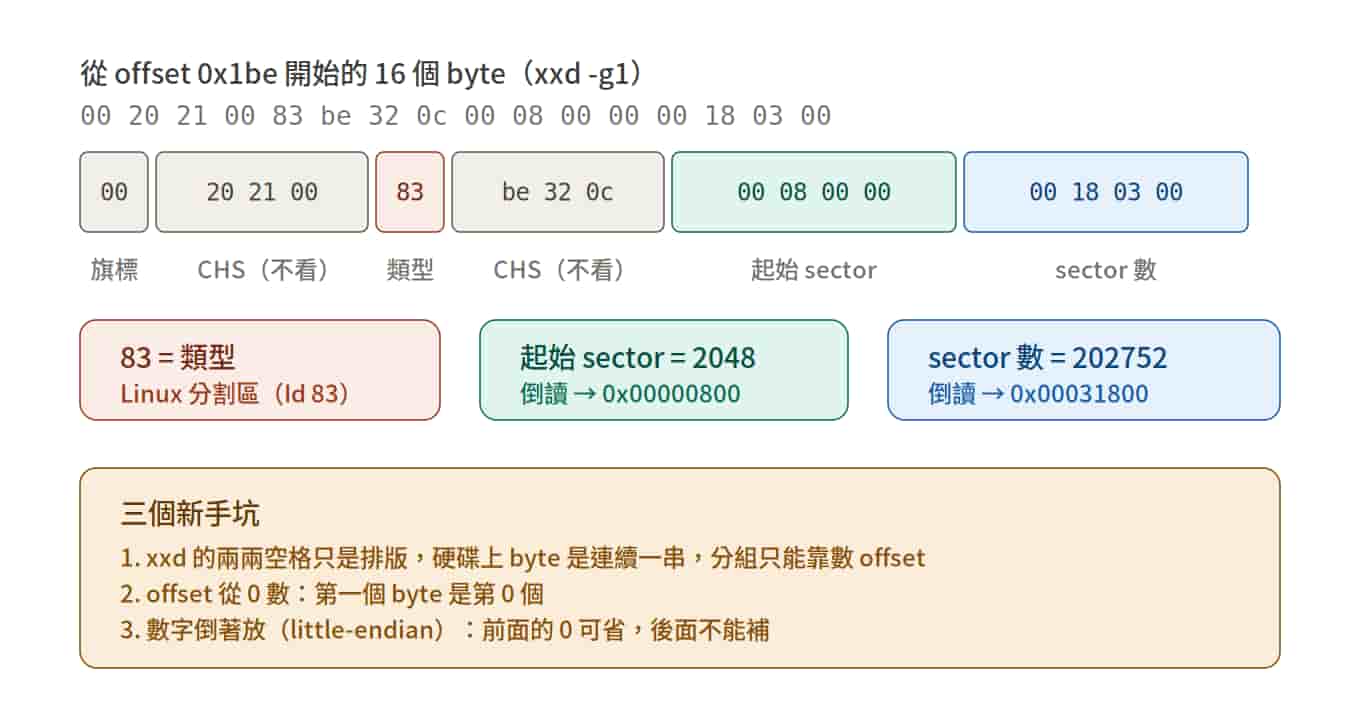
Byte 4, 83, is the Id 83 (Linux) from the table. Bytes 8–11 are 00 08 00 00, and bytes 12–15 are 00 18 03 00.
There are three pitfalls here. Each one is tiny, and stepping in any of them makes everything wrong:
- xxd's two-byte grouping is just formatting. The space in the default output
0008 0000is there for human eyes and has nothing to do with the data. On disk, the 512 bytes sit in one continuous run with no separators, so the only way to split them into fields is by counting offsets. When you read the dump, pretend the spaces don't exist. - Offsets count from 0. The first byte is byte 0. An offset means "how many bytes from the start," and the very first byte is 0 bytes from the start. I counted from 1, grabbed
00 00 18 03, and everything was off. The same goes for xxd's left column,000001c0: the first byte on that line is byte0x1c0. - Numbers are stored backwards, and you can't tack on extra zeros.
00 08 00 00doesn't look like 2048 (0x800) because the computer puts the smallest byte first, so you have to read it in reverse:00 00 08 00→0x800→ 2048. This is called little-endian. When you reverse it, you can drop the leading00s (0318is just318), but you can't pad zeros onto the end — I reversed00 18 03 00into03180000, which is like writing 31800 as 3180000, 256 times too big. The correct reading is00 03 18 00→0x31800→ 202752 = Sectors.
Check the math:
printf '%d\n' 0x800
printf '%d\n' 0x31800
While we're at it, look at the bc9c ea4c at 0x1b8. Reversed, it's 0x4cea9cbc = the Disk identifier in sfdisk's report. At this point, every number sfdisk printed has been found somewhere in those 512 bytes.
Step 5: Format it as ext4
A partition just stakes out land. To store files, you first need a bookkeeping system: which slots are in use, what each file is called, which slots hold its contents. That bookkeeping system is called a filesystem, and ext4 is one kind (NTFS and FAT32 are others). Formatting = writing a blank ledger into the partition, and the command for it is mkfs.
The layers: disk → partition table → partition → filesystem → folders and files. Your own system went through exactly the same process when it was set up; someone else just did it for you.
First, give the partition a device file:
sudo losetup -f --show -o $((2048*512)) disk.img
-o is the offset, and 2048*512 skips the first 1 MiB so everything counts from the start of the partition. It prints /dev/loop0 (your number may differ; substitute your own below). From now on, anything done to /dev/loop0 gets written into the part of disk.img after sector 2048.
sudo xxd -a -l 4096 /dev/loop0
sudo mkfs.ext4 /dev/loop0
The one line of mkfs's report worth remembering:
Creating filesystem with 101376 1k blocks and 25376 inodes
Two new terms:
- block: ext4 doesn't do its bookkeeping in sectors. It groups slots into blocks, and for this disk it picked 1k: 1 block = 1024 bytes = 2 sectors (a somewhat bigger disk would get 4k = 8 sectors). From here on, every position inside ext4 is "block number N." 202752 sectors ÷ 2 = 101376 blocks, which checks out.
- inode: each file gets one numbered registration card that records its size, timestamps, and which blocks hold its contents. 25376 inodes = at most 25376 files. The card has no filename on it; filenames are recorded in the folder. That detail becomes crucial later.
Key point: the block size is chosen by mkfs and isn't fixed. The first thing to ask about any ext4 disk is "how big are this one's blocks?" Otherwise every position you calculate afterward will be wrong.
Step 6: Walk through "opening a file" by hand
sudo mkdir -p /mnt/lab
sudo mount /dev/loop0 /mnt/lab
echo "hello disk forensics" | sudo tee /mnt/lab/secret.txt
sync
ls -li /mnt/lab
11 drwx------ 2 root root 12288 Sep  3 12:13 lost+found
13 -rw-r--r-- 1 root root    21 Sep  3 12:20 secret.txt
-i prints the inode number: secret.txt is number 13 (number 11, lost+found, was created by mkfs itself). sync makes sure the data actually lands on disk, since Linux holds it in memory first.
When you type cat secret.txt, the OS does three steps behind the scenes:
- Look in the folder for "which inode is secret.txt?" → 13
- Open inode 13 and check "which block holds the contents?"
- Work out where that block sits on the disk, and read the bytes
Now let's do it by hand. Step one is already done by ls -li. For step two, use Sleuth Kit's istat, which reads the inode straight off the disk without going through the filesystem:
sudo istat /dev/loop0 13
inode: 13
Allocated
...
size: 21
num of links: 1
Inode Times:
Accessed:       2026-09-03 12:20:49 (CST)
File Modified:  2026-09-03 12:20:49 (CST)
Inode Modified: 2026-09-03 12:20:49 (CST)
File Created:   2026-09-03 12:20:49 (CST)
Direct Blocks:
8705
Size 21, four timestamps, contents in block 8705. No filename.
Step three: blocks are 1024 bytes, so the contents start at byte 8705 × 1024.
sudo xxd -s $((8705*1024)) -l 64 /dev/loop0
00880400: 6865 6c6c 6f20 6469 736b 2066 6f72 656e  hello disk foren
00880410: 7369 6373 0a00 0000 0000 0000 0000 0000  sics............
Now go one step further: skip loop0 and find the same spot directly in disk.img. You have to add the 1 MiB where the partition starts:
xxd -s $((2048*512 + 8705*1024)) -l 64 disk.img
00980400: 6865 6c6c 6f20 6469 736b 2066 6f72 656e  hello disk foren
00980410: 7369 6373 0a00 0000 0000 0000 0000 0000  sics............
The positions on the left, 00880400 and 00980400, differ by 0x100000 = 1 MiB, which is exactly where the partition starts. The whole chain lines up. The trailing zeros are there because the block holds 1024 bytes and the file only uses 21.
Key point: you didn't open the file and you didn't go through the filesystem. You dug the contents out purely with "which slot × how big." The OS will only help you with files that are in normal shape; once a file is deleted, a folder is corrupted, or the partition table is gone, it just tells you it can't find anything. But the inode and blocks may well still be on the disk. All of data recovery and forensics comes down to connecting these three steps when things are broken in all sorts of ways.
Step 7: The deletion experiment
sudo rm /mnt/lab/secret.txt
sync
ls -li /mnt/lab
sudo xxd -s $((8705*1024)) -l 64 /dev/loop0
11 drwx------ 2 root root 12288 Sep  3 12:13 lost+found
00880400: 6865 6c6c 6f20 6469 736b 2066 6f72 656e  hello disk foren
00880410: 7369 6373 0a00 0000 0000 0000 0000 0000  sics............
The file is gone from the folder, but its contents are still there.
Deletion only does three things:
- Crosses the name out of the folder
- Marks inode 13 as "free, reusable"
- Marks block 8705 as "free, reusable"
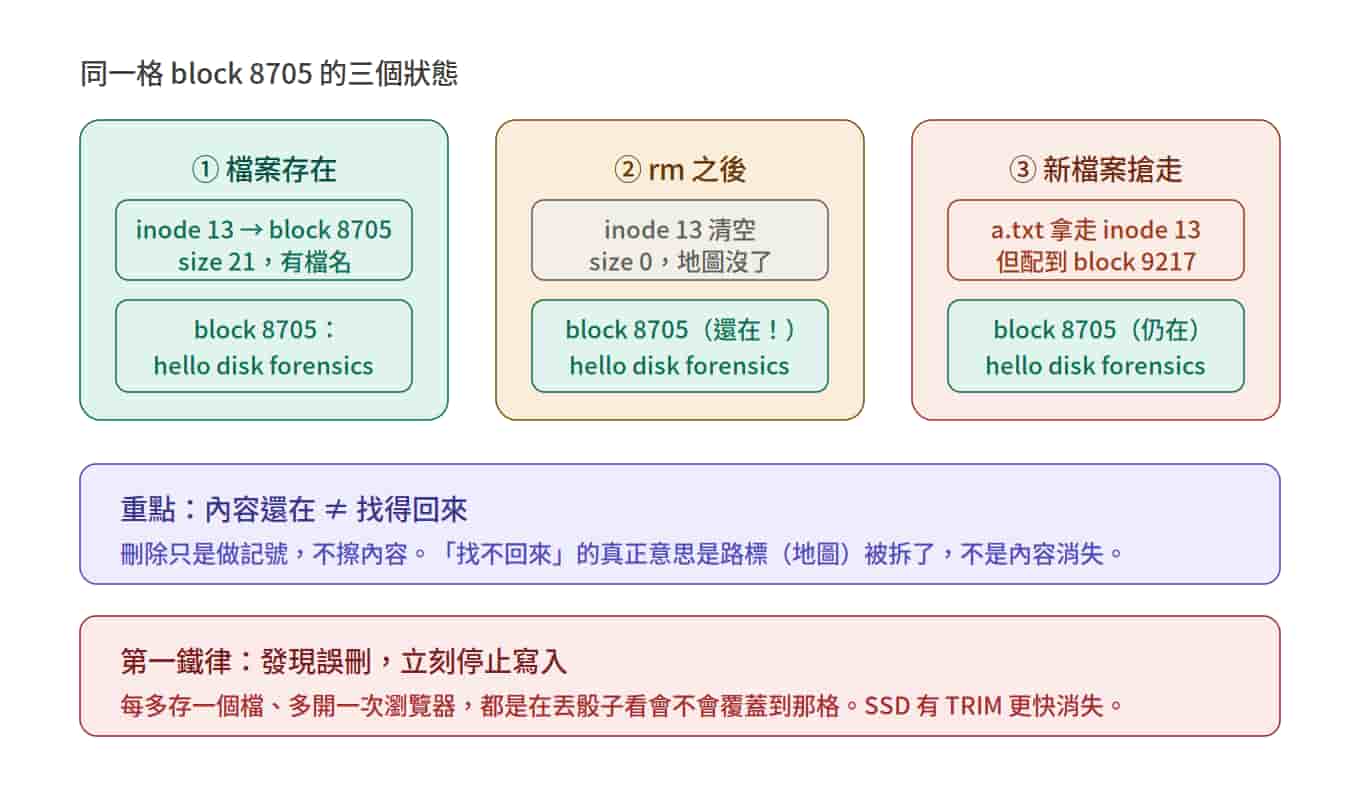
It doesn't zero out those 1024 bytes, because wiping takes time and there's no need — the next new file can simply overwrite them. The contents just sit there until some new file gets assigned block 8705.
Key point: the first iron rule of data recovery — the moment you realize you deleted something by mistake, stop writing to the disk. Every extra file you save, every time you open a browser, you're rolling the dice on whether that slot gets overwritten.
Now look at the inode again:
sudo istat /dev/loop0 13
inode: 13
Not Allocated
...
size: 0
num of links: 0
...
Deleted:        2026-09-03 12:26:10 (CST)
Direct Blocks:
Not Allocated, size is now 0, Direct Blocks is empty — when ext4 deletes a file, it wipes the record of which blocks held the contents. But there's a new line, Deleted: the disk itself recorded when the file was deleted. For forensics, that line is worth a lot.
Is "once you rm it, it's gone for good" true?
It's not a lie, just an oversimplification. "The contents are still there" and "you can get them back" are two different things, and what separates them is a map.
- The map is gone. We could still fish the data out because we knew 8705. In real life you don't know that, and ext4 wiped the map off the inode when it deleted the file. A large file is scattered across thousands of non-contiguous slots; without the map, you can't piece it back together even if every byte is still there.
- It can be overwritten at any moment. The system is constantly writing logs, temp files, and browser cache, so any slot can be taken at any time.
- SSDs are even harsher. The OS uses TRIM to tell the SSD "this slot is free," and the SSD proactively erases it. A few minutes after rm, the contents really are gone.
The key line: "you can't get it back" doesn't really mean the contents vanished — it means the signposts were torn down. In everyday practice that holds maybe 80% of the time. For someone who knows how to find backup copies of the signposts, or how to scan a disk for content signatures, it doesn't.
The inode gets snatched
Add two more files:
echo A | sudo tee /mnt/lab/a.txt >/dev/null
sudo cp /mnt/lab/a.txt /mnt/lab/b.txt
sync; ls -li /mnt/lab
13 -rw-r--r-- 1 root root     2 Sep  3 12:32 a.txt
14 -rw-r--r-- 1 root root     2 Sep  3 12:32 b.txt
11 drwx------ 2 root root 12288 Sep  3 12:13 lost+found
a.txt got number 13 — the very card that had just been crossed off for secret.txt. "Reusable" isn't just talk: the next new file grabbed it immediately, and secret.txt's original data on that card has been overwritten. b.txt got 14, which proves a copy is an independent new file: new inode, new block, contents duplicated.
sudo istat /dev/loop0 13 | tail -2
sudo istat /dev/loop0 14 | tail -2
sudo xxd -s $((8705*1024)) -l 32 /dev/loop0
Direct Blocks:
9217
Direct Blocks:
9218
00880400: 6865 6c6c 6f20 6469 736b 2066 6f72 656e  hello disk foren
00880410: 7369 6373 0a00 0000 0000 0000 0000 0000  sics............
The inode was reused immediately, but the block wasn't. a.txt got 9217, 8705 wasn't touched, and hello is still there. This time ext4 moved forward to find new slots instead of going back for the one that had just been freed, so the window where "the contents are still there" usually lasts longer than the window where "the inode is still there." This behavior differs from one filesystem to the next, and knowing that is a skill in itself.
We're now in the worst-case scenario: the filename is gone, the inode has been taken by another file, the map has been wiped, and only the contents are left sitting on the disk.
Step 8: Get it back
With no map, you scan the whole disk slot by slot, looking for signatures in the content itself. We know the file contains "hello disk forensics":
sudo grep -a -b -o "hello disk forensics" /dev/loop0
8913920:hello disk forensics
-a forces the disk to be read as plain text, and -b prints the byte offset of the match. 8913920 ÷ 1024 = 8705, the same block the inode recorded before it was wiped — only this time there was no ledger at all; we found it purely by scanning the content.
Recover it:
sudo dd if=/dev/loop0 bs=1024 skip=8705 count=1 2>/dev/null | tr -d '\0' > recovered.txt
cat recovered.txt
bs=1024 skip=8705 count=1 = in units of 1024, skip 8705 of them and grab 1. tr -d '\0' strips the zeros trailing at the end of the block.
This technique is called carving: instead of relying on the ledger, you rely on signatures in the content. With real files you won't know the contents, but file formats have fixed headers — JPEG is FF D8 FF, PDF is %PDF, ZIP is PK. PhotoRec scans the whole disk for the headers of hundreds of formats, and whenever it hits one, it grabs data from that slot onward.
The limits of carving:
- The filename is lost
- The timestamps are lost
- If the file isn't contiguous, it gets pieced together wrong
Cleanup
sudo umount /mnt/lab
sudo losetup -d /dev/loop0
Keep disk.img — we'll use it again in the next lesson.
Wrap-up
There are really only four takeaways from this lesson:
- A hard drive is a row of numbered slots, and everything comes down to answering "what's in which slot"
- The MBR and ext4's ledgers both have formats fixed by the spec. With the format table in hand, you can read them just by counting offsets — count from 0, ignore xxd's spaces, and read numbers backwards
- "Opening a file" is three steps: look up the name → check the inode → read the block. If you can walk those three steps by hand, you can still get data back after a file is deleted or the ledger is broken
- Deleting just leaves a mark. Contents still there ≠ recoverable; what separates the two is a map
Happy Carving!
Member discussion