
TryHackMe Security Footage Writeup: Recovering MJPEG Camera Footage from a PCAP

Room Info
- Platform: TryHackMe
- Room name: Security Footage
- Difficulty: Medium
- Goal: Recover the camera footage from the network capture
- File:
security-footage-1648933966395.pcap - Link: https://tryhackme.com/room/securityfootage
Step 1: Protocol analysis - understanding the traffic structure
Why look at the protocol statistics first?
In forensics, to understand the overall structure of the data, you shouldn't blindly walk through the capture packet by packet. Start from a bird's-eye view instead:
- Which protocols are present?
- How is the traffic distributed?
- Is there anything unusual, or a key protocol worth noting?
Run the protocol hierarchy statistics
tshark -r security-footage-1648933966395.pcap -q -z io,phs
Interpreting the results
Protocol Hierarchy Statistics
eth                                      frames:1109 bytes:6023125
  ip                                     frames:1109 bytes:6023125
    tcp                                  frames:1109 bytes:6023125
      http                               frames:1 bytes:402
Key observations 🔍
- 1109 packets in total, roughly 6 MB of data
- It's all TCP traffic - no UDP at all
- There is only 1 HTTP packet ⭐ - this is the single most important lead!
Why zero in on the HTTP packet right away?
In network forensics, an HTTP packet usually contains:
- Request/response metadata (URL, Content-Type, file size, and so on)
- The starting point of the conversation - the large volume of TCP traffic that follows is very likely the payload of the HTTP response
The file is named security-footage (surveillance video), and combined with:
- A large amount of TCP traffic (6 MB)
- Only a single HTTP packet
The inference: this HTTP packet kicked off a request, and the server streamed the video data back over TCP!
Step 2: A deep dive into the HTTP packet
Inspect the full contents of the HTTP packet
tshark -r security-footage-1648933966395.pcap -Y "http" -V
Pulling out the key information
GET / HTTP/1.1
Host: 192.168.1.100:8081
User-Agent: Mozilla/5.0 (X11; Ubuntu; Linux x86_64; rv:98.0) Gecko/20100101 Firefox/98.0

Source: 10.0.2.15
Destination: 192.168.1.100
Source Port: 42312
Destination Port: 8081
TCP Stream: 0
What we can conclude
- This is an HTTP GET request - the client is asking the camera for its video feed
- TCP Stream 0 - the entire conversation lives in a single TCP connection
- Port 8081 - the server port; later we'll filter for packets coming from this port
Step 3: Extract the TCP stream data
Why extract only the server-side packets?
TCP is a two-way conversation:
- Client → Server: the HTTP request (we've already seen it - just 402 bytes)
- Server → Client: the HTTP response + the video data (this is what we actually want!)
If you don't filter, you'll mix in the client's ACK packets and request data, which corrupts the file you extract.
The extraction command
tshark -r security-footage-1648933966395.pcap -Y "tcp.stream eq 0 and tcp.srcport eq 8081" -T fields -e tcp.payload | xxd -r -p > recovered_video.binBreaking down the command
| Argument | What it does |
|---|---|
-Y "tcp.stream eq 0" |
Look only at TCP stream 0 (our HTTP connection) |
tcp.srcport eq 8081 |
Keep only the packets coming from the server (filter out the client) |
-T fields -e tcp.payload |
Output in field format, extracting only the TCP payload |
xxd -r -p |
Convert the hex back into binary data |
The result
ls -lh recovered_video.bin
# -rwxrwxrwx 1 user user 5.7M recovered_video.bin
Successfully extracted 5.96 MB of data!
Step 4: Identify the file format
Check the file header (magic bytes)
xxd recovered_video.bin | head -20
What we find
00000000: 4854 5450 2f31 2e31 2032 3030 204f 4b0d  HTTP/1.1 200 OK.
00000010: 0a43 6f6e 6e65 6374 696f 6e3a 204b 6565  .Connection: Kee
...
00000050: 653a 206d 756c 7469 7061 7274 2f78 2d6d  e: multipart/x-m
00000060: 6978 6564 2d72 6570 6c61 6365 3b20 626f  ixed-replace; bo
00000070: 756e 6461 7279 3d42 6f75 6e64 6172 7953  undary=BoundaryS
...
000000d0: 7065 3a20 696d 6167 652f 6a70 6567 0d0a  pe: image/jpeg..
...
000000f0: 2020 2020 3130 3432 370d 0a0d 0aff d8ff      10427.......
00000100: e000 104a 4649 4600 0101 0000 0100 0100  ...JFIF.........
Key findings 🎥
HTTP/1.1 200 OK- a complete HTTP responseContent-Type: multipart/x-mixed-replace- this is an MJPEG stream!boundary=BoundaryString- each frame is separated by--BoundaryStringContent-type: image/jpeg- every frame is a JPEG imageFF D8 FF E0 ... JFIF(offset 0xF0) - the JPEG file signature
What is MJPEG?
Motion JPEG (MJPEG) = streaming a series of JPEG images one after another to form a "video"
- A format commonly used by surveillance cameras
- Every frame is a standalone JPEG image
- Well suited to low-latency, real-time streaming
Step 5: Strip the HTTP headers
Why remove them?
- The HTTP headers aren't part of the video data
- They'll interfere with the image extraction later on
- We need to find where the first JPEG begins (
FF D8 FF)
Method 1: locate it with grep
tail -c +$(grep -oba $'\xff\xd8\xff' recovered_video.bin | head -1 | cut -d: -f1) \
  recovered_video.bin > video.mjpeg
Verify the start of the file
xxd video.mjpeg | head -5
00000000: 0aff d8ff e000 104a 4649 4600 0101 0000 .......JFIF.....
There's still a stray newline 0a at the very start (a leftover from HTTP chunked encoding)
Method 2: clean it up once more
tail -c +2 video.mjpeg > video_clean.mjpeg
Verify the final result
xxd video_clean.mjpeg | head -3
00000000: ffd8 ffe0 0010 4a46 4946 0001 0100 0001  ......JFIF......
00000010: 0001 0000 ffe1 0080 4578 6966 0000 4d4d  ........Exif..MM
00000020: 002a 0000 0008 0003 0132 0002 0000 0014  .*.......2......
✅ Perfect! The file now begins right at the JPEG magic bytes FF D8 FF E0
Step 6: Extract all the JPEG frames
Use Foremost
foremost -t jpeg -i video_clean.mjpeg -o extracted_frames
How Foremost works
- It scans the whole file looking for the JPEG start (
FF D8) and end (FF D9) markers - Then it automatically carves out and extracts each frame
The result
cd extracted_frames/jpg
ls -1
A whole batch of JPEG files, sorted by number:
00000060.jpg
00001307.jpg
00002602.jpg
...
00010898.jpg
Step 7: Assemble the flag
Look at the image contents
Each image shows a phone screen with a red hex string on it!
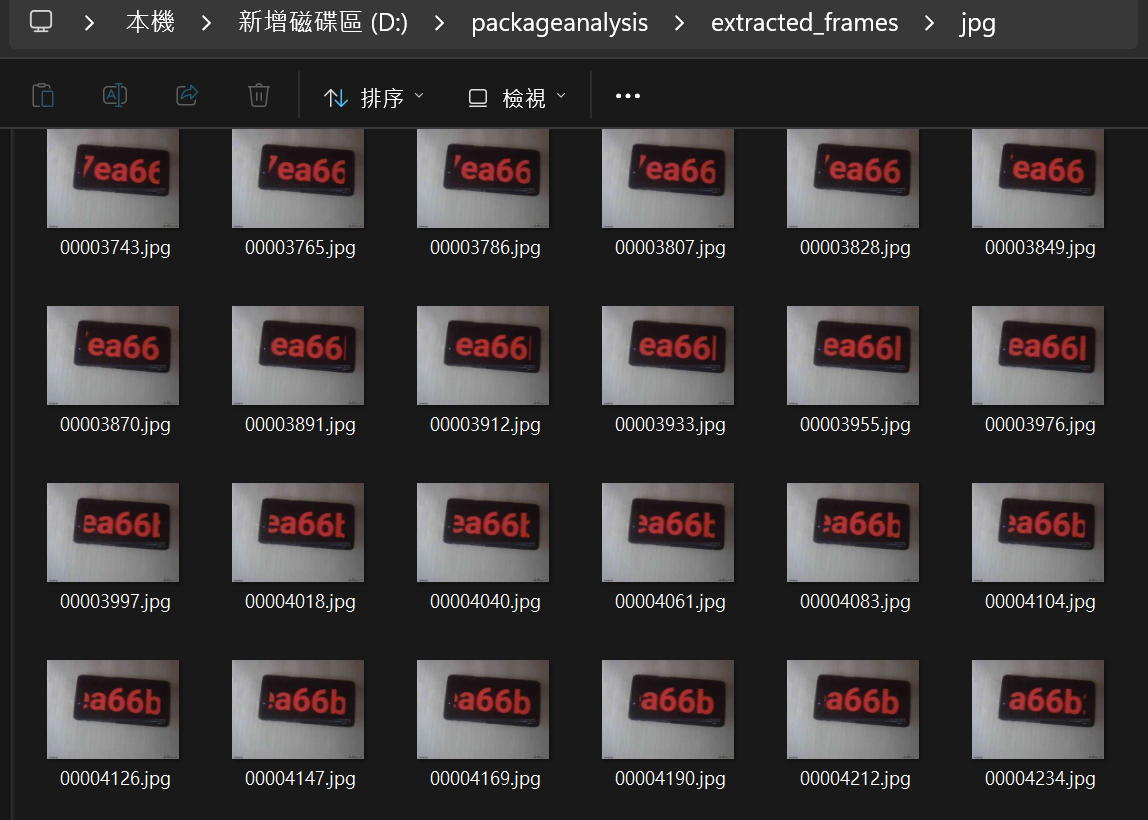
Piece it together in order
| File | Contents |
|---|---|
| 00000060.jpg | flag{ |
| 00001307.jpg | 5eb |
| 00002602.jpg | f457 |
| 00003912.jpg | ea66 |
| 00005605.jpg | b287 |
| 00006902.jpg | 7fdb |
| 00008217.jpg | ca2d |
| 00009565.jpg | e9ec |
| 00010898.jpg | 86f31} |
The final flag
flag{Redacted}
Key takeaways
1. The packet-analysis workflow
1. Protocol statistics → understand the overall structure
2. Anomaly spotting → find the key lead
3. Deep analysis → pull the detailed info out of the key packet
4. Data reassembly → extract and rebuild the original file
5. Format identification → work out the file type
6. Content extraction → recover the final data
2. Why is the HTTP packet the key?
- Amid a flood of TCP traffic, the HTTP packet provides context
- It tells us the purpose, direction, and content type of the conversation
- It's the entry point for understanding the entire data flow
Member discussion